
Preview Ready
When the preview build finishes, the Preview screen updates to confirm the preview is available and provides the link and access credentials.
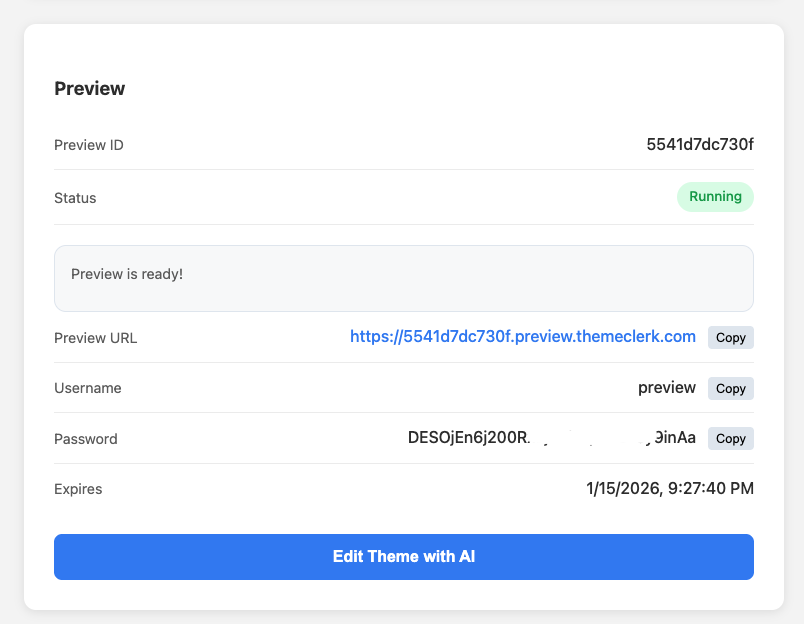
What you see on this screen
- Preview ID: The unique ID for this preview (example:
5541d7dc730f). - Status: Shows the preview is active (example badge: Running).
- Confirmation message: A notice indicating completion (example: Preview is ready!).
- Preview URL: A clickable link to open the preview site, with a Copy button.
- Username: Login username for accessing the preview (example:
preview), with a Copy button. - Password: Login password for accessing the preview, with a Copy button.
- Expires: The date/time the preview will expire (example:
1/15/2026, 9:27:40 PM). - Edit Theme with AI (button): Launches the AI-assisted theme editor for this preview.
Open the preview
- Click the Preview URL to open the preview in a new browser tab.
- Or click Copy next to the URL and paste it into your browser.
Log in to the preview (if prompted)
- Copy the Username value.
- Copy the Password value.
- Enter them in the login prompt/page for the preview site.
Start editing the theme with AI
- Confirm the status shows Running and the message says Preview is ready!
- Click Edit Theme with AI to begin making changes using the AI editor.
Tips / Notes
- If the preview is expired or stopped, the URL may no longer work—create a new preview from the Create Preview screen.
- Treat the preview credentials like temporary access keys; they grant access to the preview until it expires.