
Deploy Changes
Preview Button (in the AI Theme Editor)
The Preview button in the AI Theme Editor simply opens the storefront preview so you can see the current state of the previewed store/theme in a browser view.
Use Preview to verify changes
- Make your requested changes in the conversation.
- Click Preview (top bar).
- Review the storefront to confirm the change looks correct (desktop + mobile if applicable).
- Return to the editor to continue iterating or deploy.
Deploy Changes (Deploy Modal)
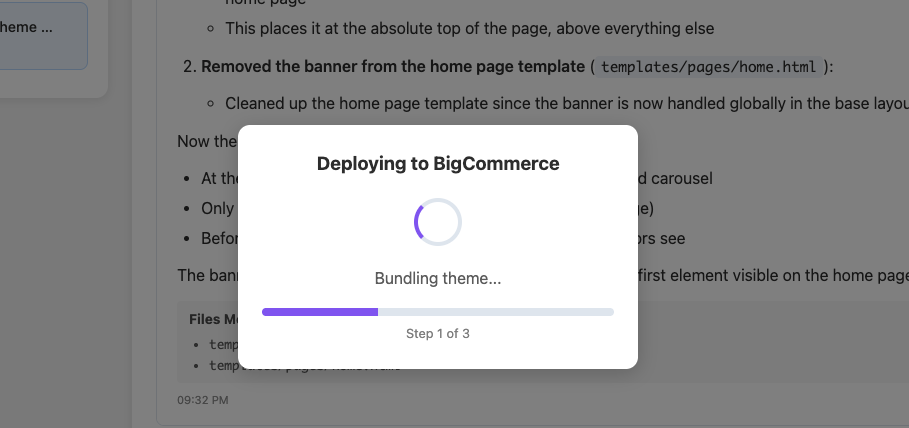
When you click Deploy, a modal appears to show progress while the system packages and sends your updated theme to BigCommerce.
What you see in the deploy modal
- Title: Deploying to BigCommerce
- Spinner/loading indicator: Shows deployment is in progress.
- Current task message: Example shown: Bundling theme...
- Progress bar: Visual progress of the deployment.
- Step counter: Example shown: Step 1 of 3
How to deploy
- In the AI Theme Editor, click Deploy.
- Watch the deploy modal as it runs through the steps (e.g., bundling and uploading).
- Wait until deployment completes (the modal will typically close automatically or show a completion message—if you share that screenshot, I’ll document the exact “success” state wording).
Tips / Notes
- If deployment fails or stops mid-step, capture the error state and retry after confirming the preview is still Running.
- If your changes involve assets (images/files), bundling may take longer than small text/layout edits.