
AI Theme Editor
Use the AI Theme Editor to describe theme changes in plain language, manage multiple change conversations, preview updates, and deploy them.
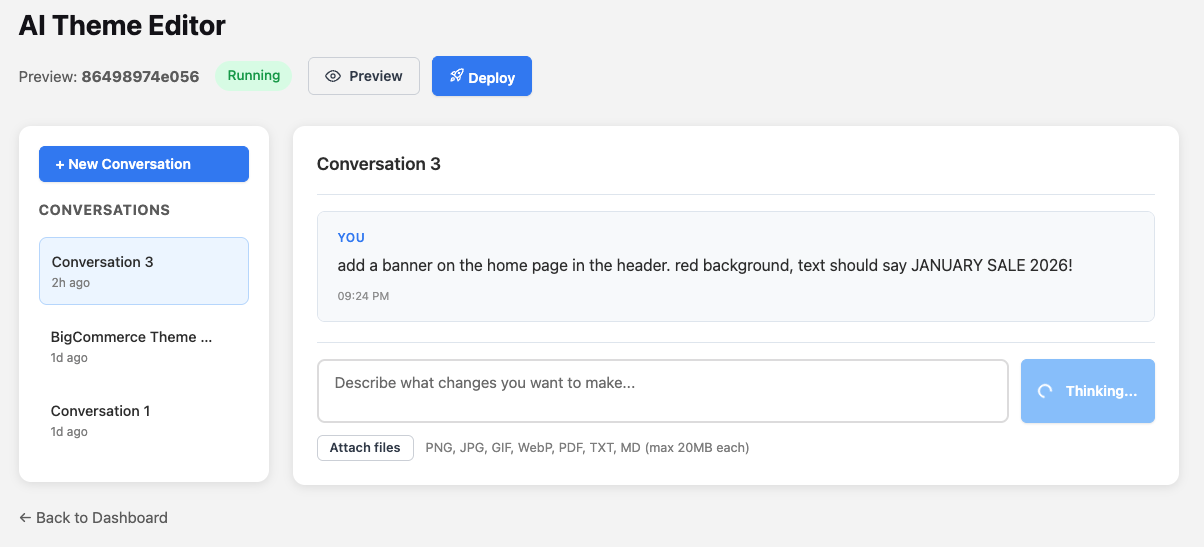
What you see on this screen
Top bar
- Preview: [ID]: Shows which preview you’re editing (example:
86498974e056). - Status badge (Running): Confirms the preview environment is active.
- Preview (button): Opens the live preview so you can see changes.
- Deploy (button): Publishes/applies the finalized changes (typically to the target theme/store environment).
Left panel: Conversations
- + New Conversation (button): Starts a new thread of changes.
- Conversation list: Shows existing conversations (example: “Conversation 3”, “Conversation 1”, and a “BigCommerce Theme ...” entry). Each conversation represents a separate set of requests and responses.
Main panel: Conversation workspace
- Conversation title: Displays the selected conversation (example: “Conversation 3”).
- Message history: Shows what you previously asked for (example request: “add a banner on the home page in the header...”).
- Prompt box: Field labeled Describe what changes you want to make... where you type your next request.
- Thinking indicator: Shows the AI is processing your request.
- Attach files: Upload supporting assets or references (PNG, JPG, GIF, WebP, PDF, TXT, MD; max 20MB each).
Make a change with AI
- Select an existing conversation (left panel) or click + New Conversation.
- In the prompt box (Describe what changes you want to make...), type your request in plain language.
-
- Example: “Add a banner to the header on the home page with a red background and text ‘JANUARY SALE 2026!’”
- Wait for the AI to process (the Thinking... state appears).
- Click Preview (top bar) to view the result on the storefront preview.
Add supporting files (optional)
- Click Attach files.
- Upload images (logos, banner artwork), PDFs, or text notes to help the AI match your intent.
- Reference the file in your prompt (e.g., “Use the uploaded banner image in the header”).
Deploy changes
- Review changes using Preview.
- When satisfied, click Deploy to publish/apply the changes.
Tips / Notes
- Use separate conversations for different tasks (e.g., “Homepage banner” vs “Product page layout”) so it’s easier to track and revert decisions.
- Be specific in prompts: location (“home page header”), styling (“red background”), exact text, and any responsive behavior (“mobile should stack text”).
- If the preview status is not Running, return to the previews list and restart/create a preview before editing.